
New Tab
- Command: New Tab
- Shortcut: Generic ANSI: CmdOrCtrl+T · Generic ISO: CmdOrCtrl+T
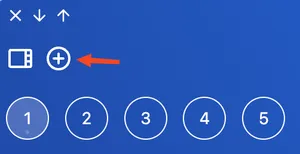
You can also click the + button in the left panel.
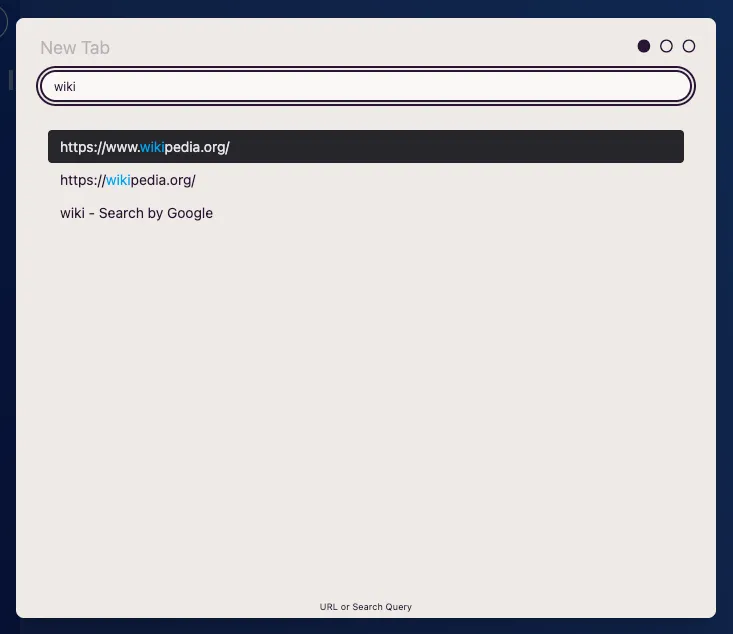
You’ll see a modal like this:
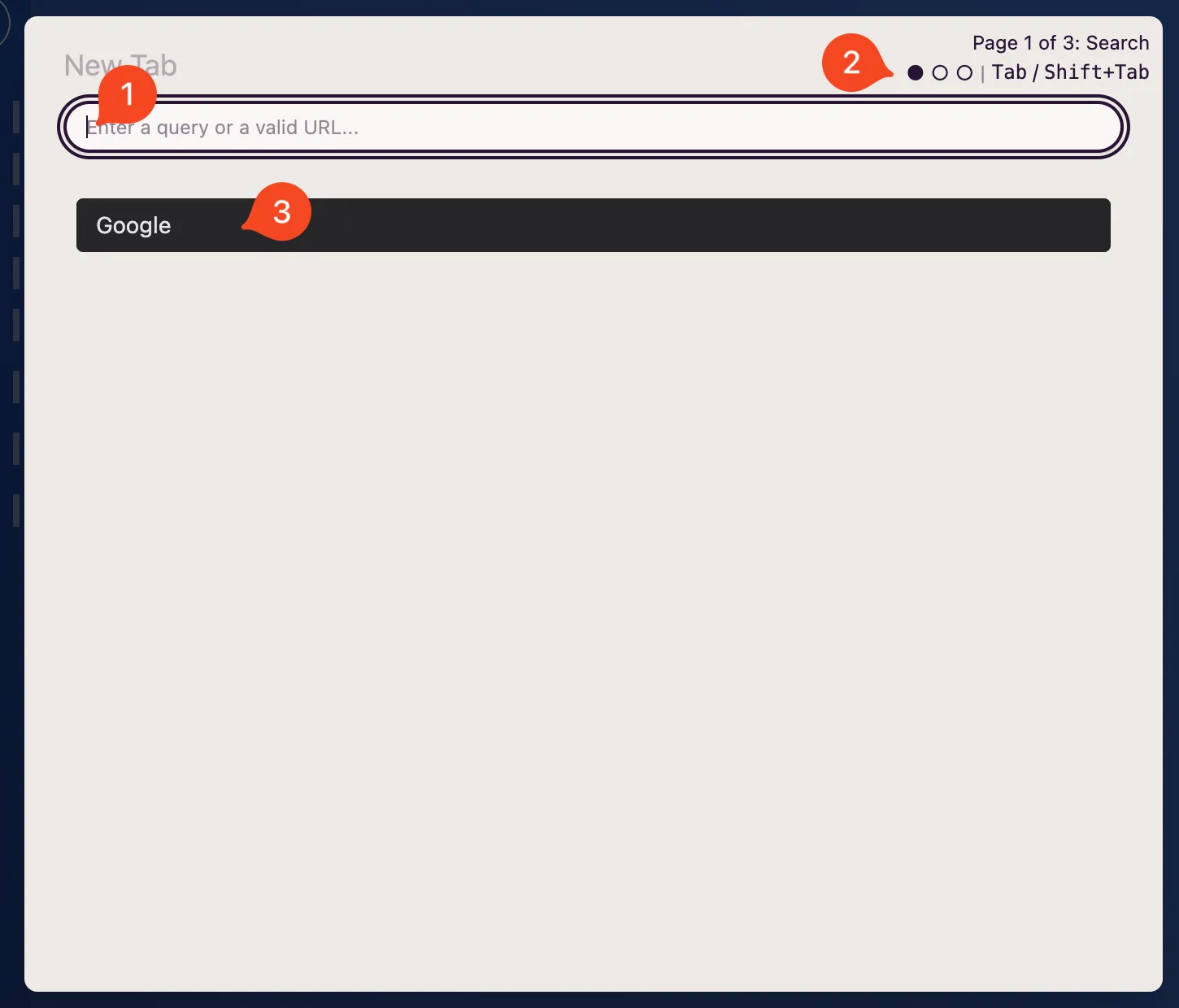
Where:
- It’s a text field where you can enter:
- Any text string to search it through one of the configured search engines.
- A valid domain.
- Search the browsing history.
- Pages indicator (top right corner):
- Shows the current page and the total, e.g.
Page 1 of 3: Search. - Three clickable dots let you jump directly to any page.
- Press Tab to move to the next page, Shift+Tab to go back.
- Shows the current page and the total, e.g.
- List with:
- Selection of configured search engines.
- Selection of an element from the browsing history.
Using a search engine
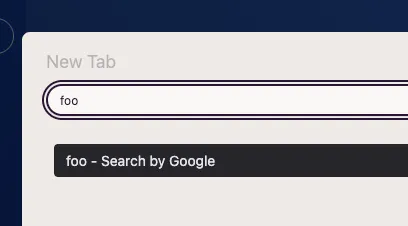
Section titled “Using a search engine”To use one of the configured search engines, you’ll need to enter the text you want to search (1), select the desired search engine and press enter.
Enter a valid domain
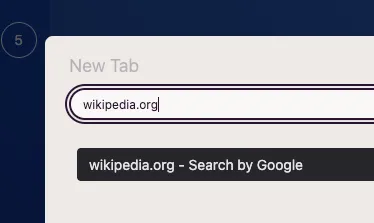
Section titled “Enter a valid domain”You can also enter a valid domain (no need to add the protocol) and press enter.
Using the history
Section titled “Using the history”When you type a text string, AwesomeB will also search the history and show the results in the list. You can select one and press enter.
Selecting a profile
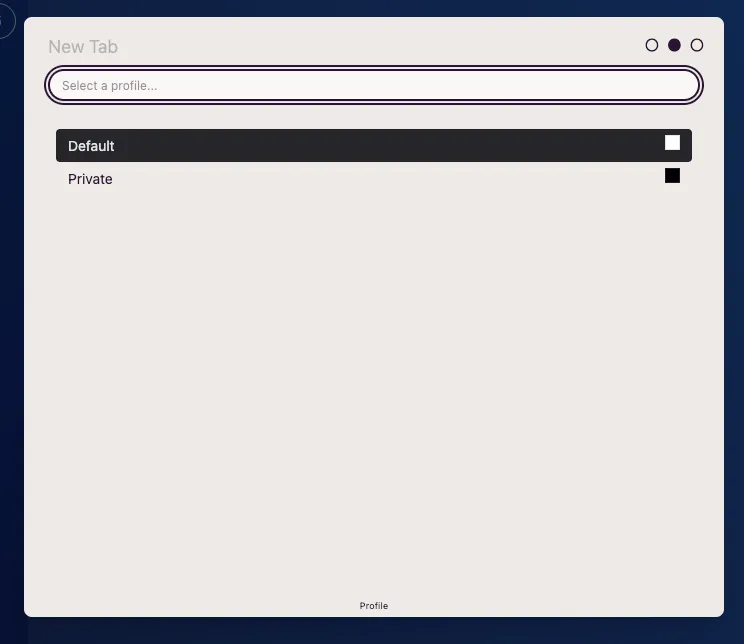
Section titled “Selecting a profile”As you’ve seen in configuration, you can have multiple profiles. To open a new tab with a profile other than default, you’ll need to press the Tab key to move to the next page. There you can select the desired profile.
Target selection
Section titled “Target selection”Finally, if you wish, pressing Tab again will let you access the third page, which will allow you to select where you want to open the new tab:
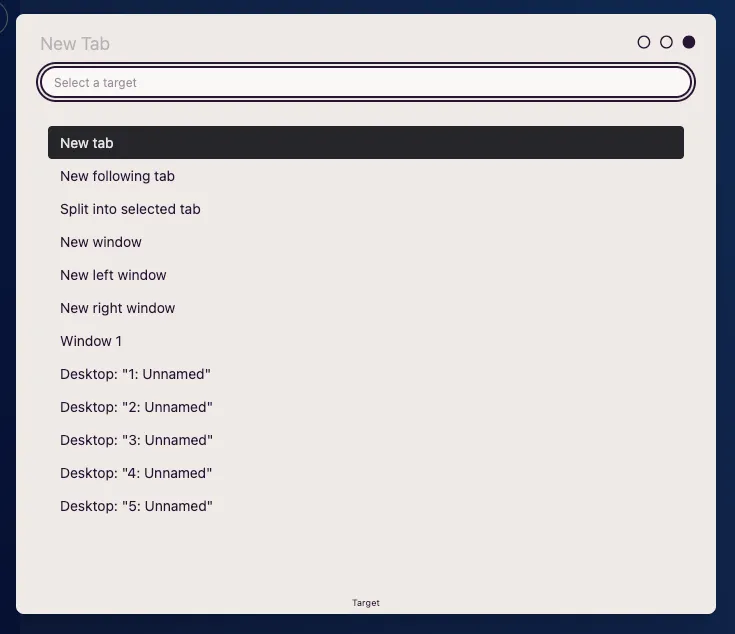
The available options are:
- New tab: Opens the website in a new tab at the end of the tabs list.
- New following tab: If you already have another previous tab selected, it opens the new website right after it.
- Split into selected tab: Opens the new website in a split screen together with the previous website you had selected.
- New window: Opens the website in a new window.
- New left window: Useful if you have a screen on the left. It will open the new website in a new window located on the left screen.
- New right window: Useful if you have a screen on the right. Will open the new website in a new window located on the right screen.
- Window 1: Opens the new website in a tab in window 1. This item is dynamic. This means that if you had two windows, you would see the “Window 1” and “Window 2” options.
- Desktop 1, 2, …: Opens the new website in the indicated desktop.
Once the new tab is open
Section titled “Once the new tab is open”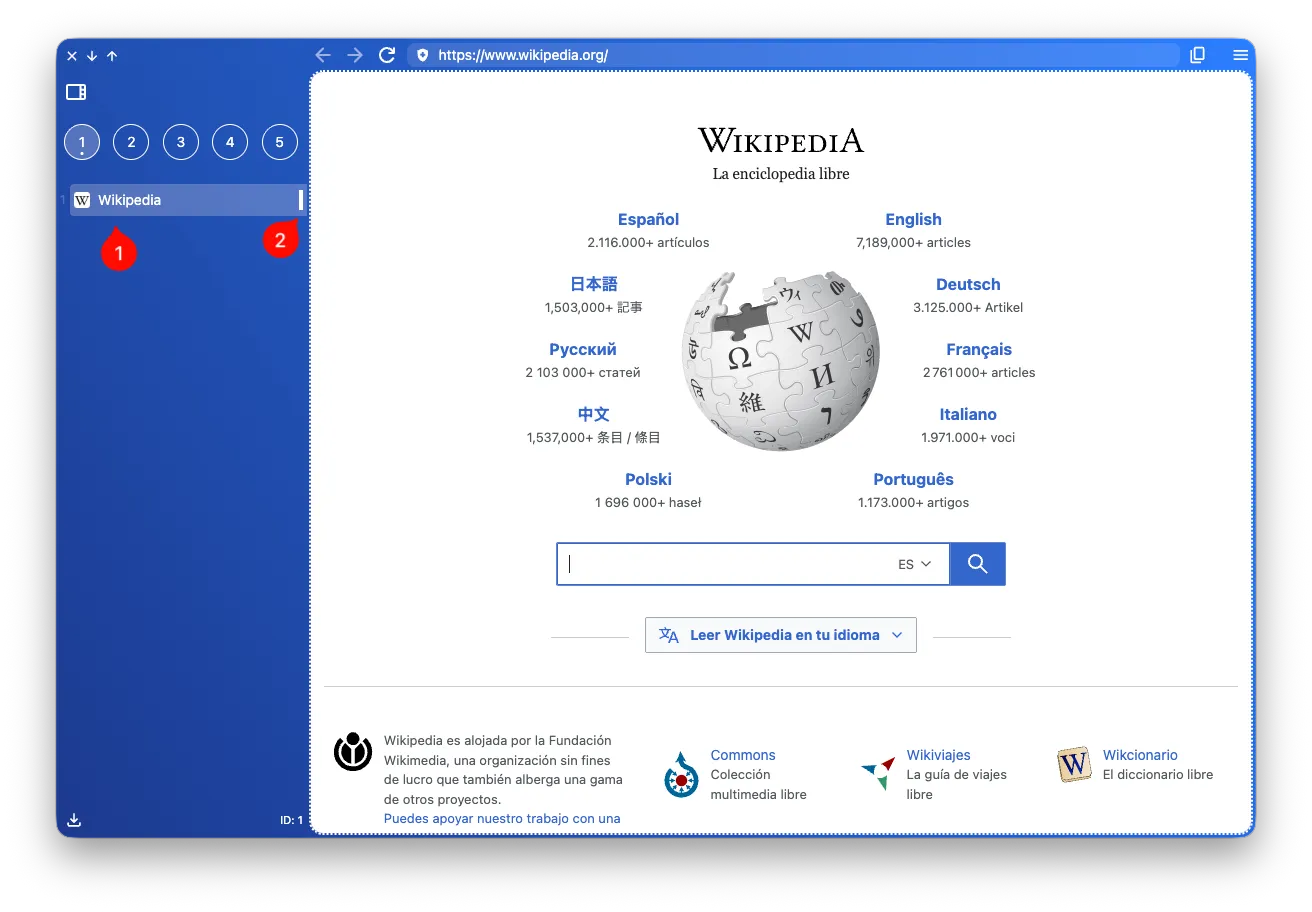
Once you’ve opened the new tab, you’ll see it in the left sidebar list, where you’ll find the favicon and the title (1) and an indicator with the color of the profile it was opened with (2).