
General
- Main menu: AwesomeB → Preferences
- Shortcut: Generic ANSI: CmdOrCtrl+, · Generic ISO: Shift+CmdOrCtrl+'
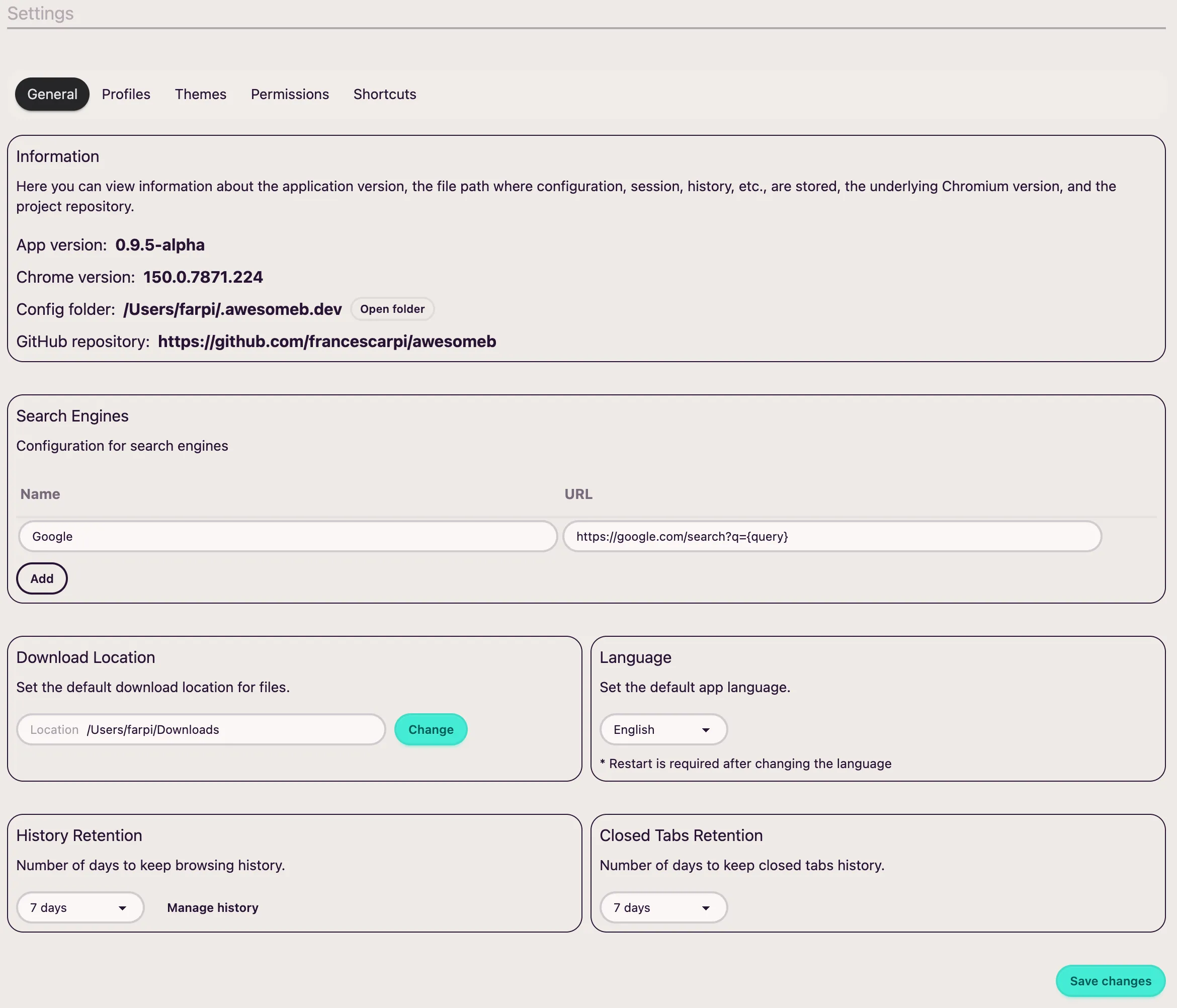
Here you will find different sections of generic configuration.
Information
Section titled “Information”Here you will find the application version, the Chrome version, the path to the AwesomeB configuration folder, and the URL of the repository.
Search engines
Section titled “Search engines”As you saw in the first steps section, you need to configure a first search engine when you start the browser for the first time.
From here, you can add more, edit, or delete them.
Download folder
Section titled “Download folder”Lets you configure the folder where the browser will save downloads.
History retention
Section titled “History retention”Lets you specify how many days you want to keep the browsing history. There is also a link to the history view.
Closed tabs retention
Section titled “Closed tabs retention”When you close a tab, AwesomeB does so virtually. It actually remains there hidden for a few days (in case you want to recover it). From here you can specify how many days you want closed tabs to be kept.