Install
Since there is no integration (yet) with the Chrome Web Store, extensions have to be installed manually.
You can access extensions through:
- Command: Manage Extensions
The first time you access the extensions management page, you’ll only see this:
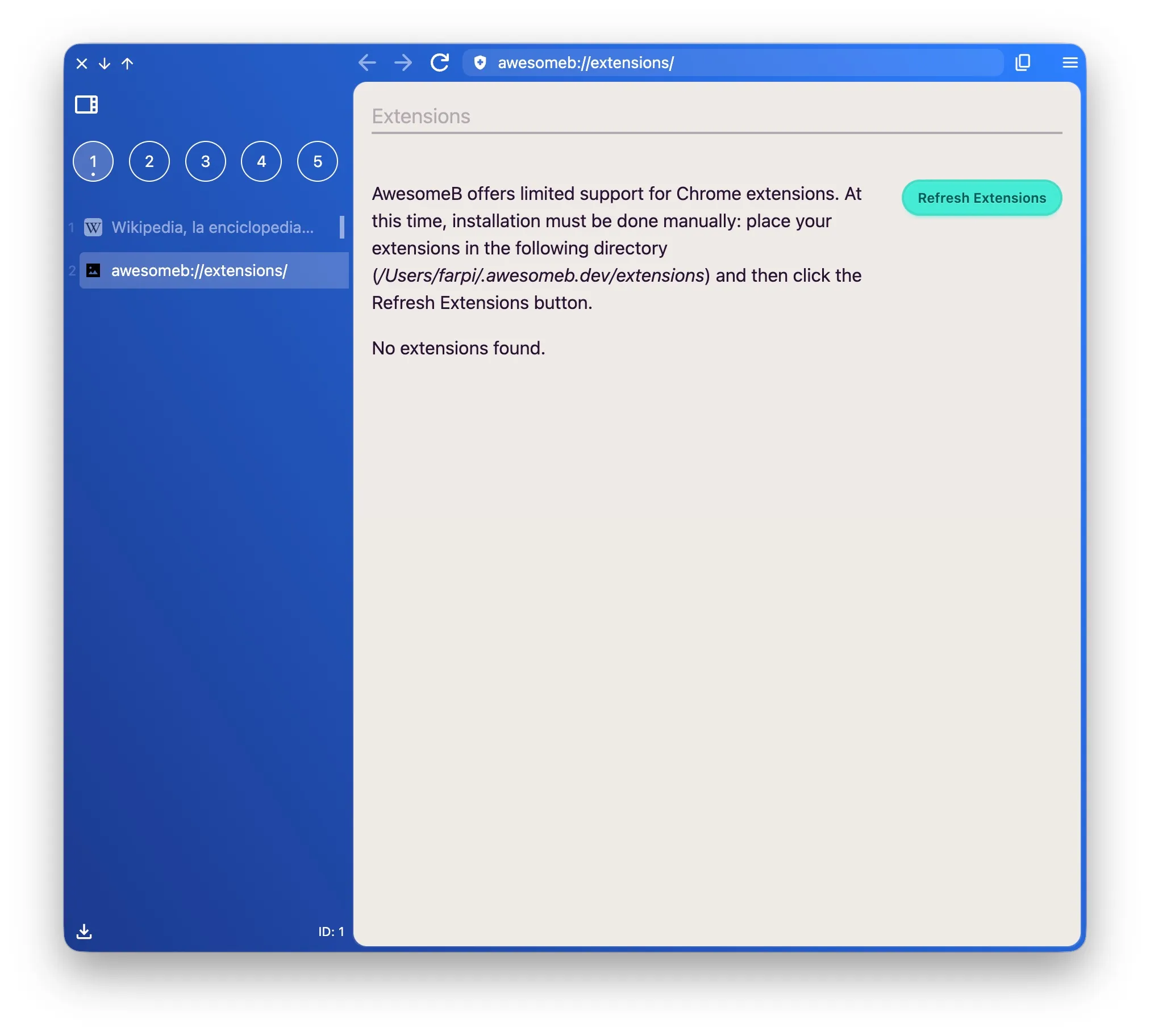
You’ll see that the help text points you to the path of your configuration folder, where extensions need to go.
What you have to do is download the extension with the Chrome browser, locate the folder, and copy it to the path that AwesomeB indicates. Then you just have to click the Refresh Extensions button.
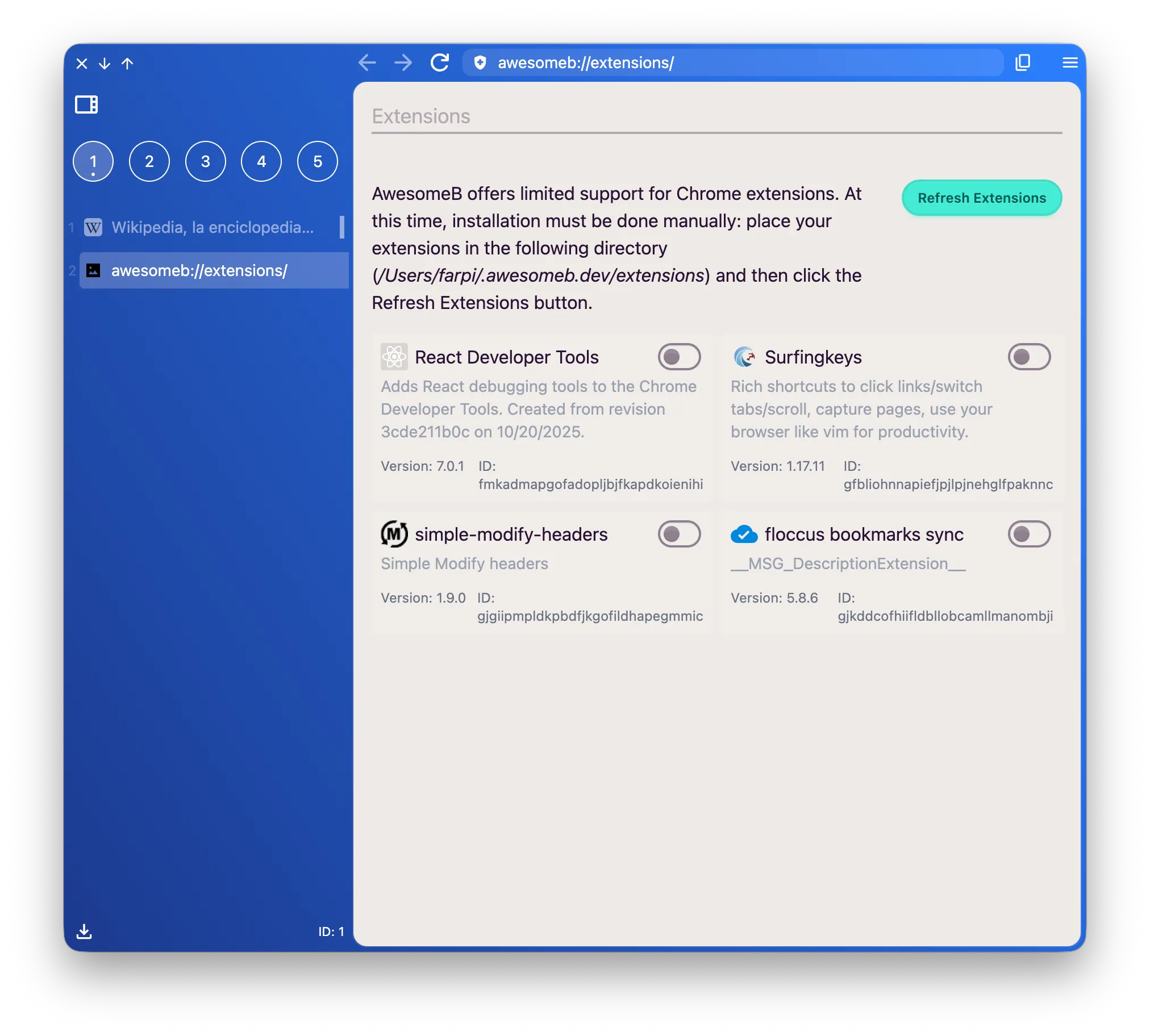
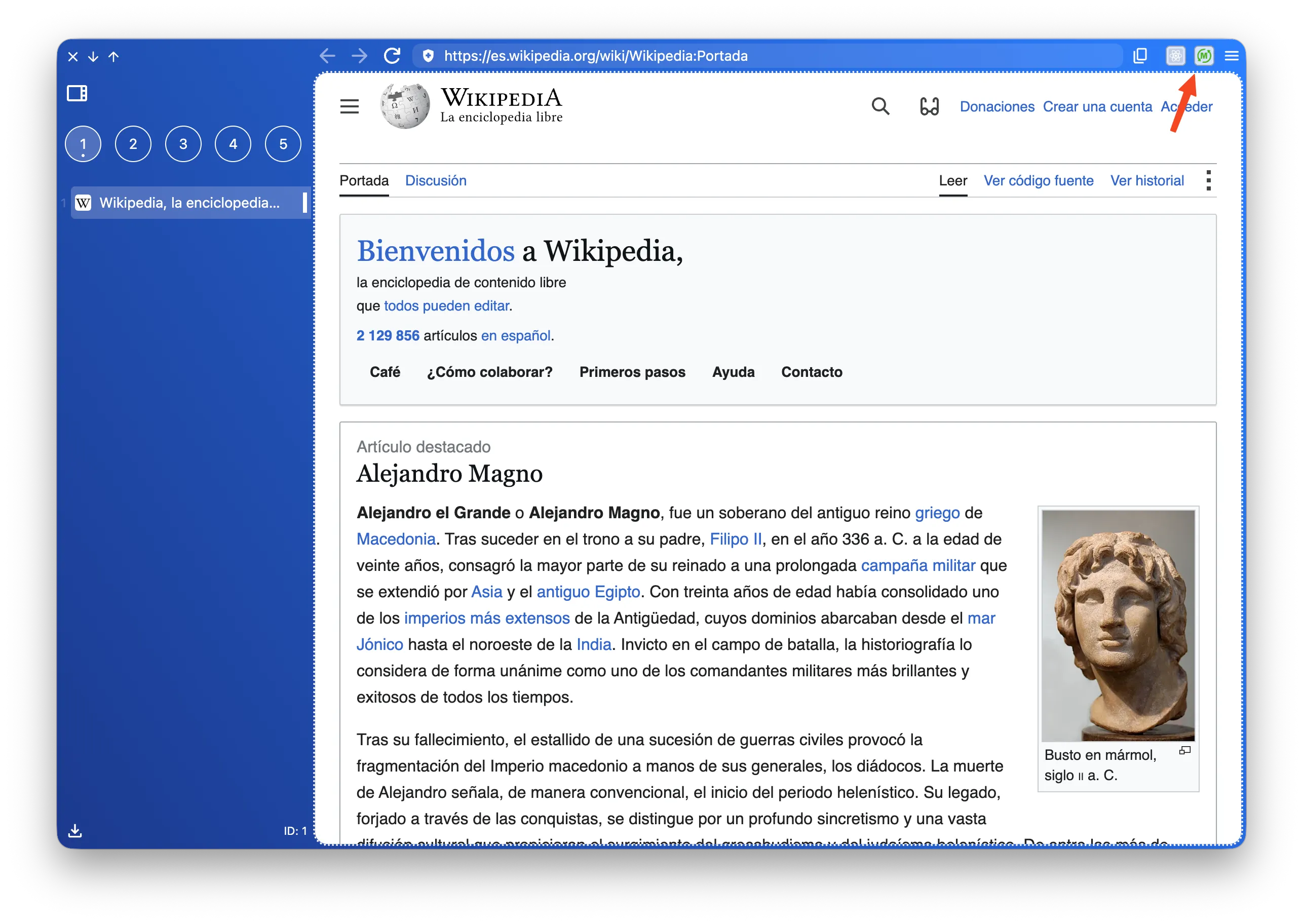
By default, new extensions appear disabled. Enable the ones you need and when you open a tab you’ll see them in the top bar.