Close a tab
AwesomeB introduces a new way to manage tabs: before closing them, it goes through the suspend state. Desktops organize tabs according to your workflow, and suspending them lets you keep them in their place and recover them later.

In the screenshot above, you can see a suspended tab (1) and two active ones (2 and 3).
There are several ways to close or suspend a tab:
Suspend
Section titled “Suspend”You can access suspend a tab through:
- Main menu: Tabs → Suspend tab
- Command: Suspend Tab
- Shortcut: Generic ANSI: CmdOrCtrl+Shift+S · Generic ISO: CmdOrCtrl+Shift+S
Also, when a website is active and you hover over it, a button with a minus sign will appear, which means suspend it.

You can access close a tab through:
- Main menu: Tabs → Close tab
- Command: Close Tab
- Shortcut: Generic ANSI: CmdOrCtrl+W · Generic ISO: CmdOrCtrl+W
Also, when a website is suspended and you hover over it, an X button appears, which means close it.

Context menu
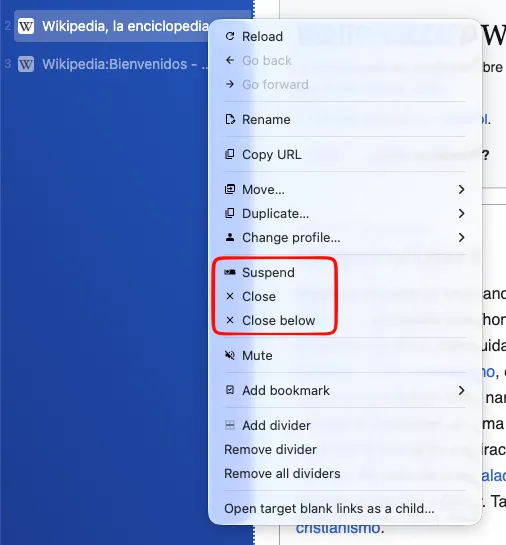
Section titled “Context menu”Using the context menu on a tab, in addition to letting you suspend it or close it directly, you can also close all tabs below the current one.