
Navigate
Here you’ll find the different ways you have to navigate between tabs.
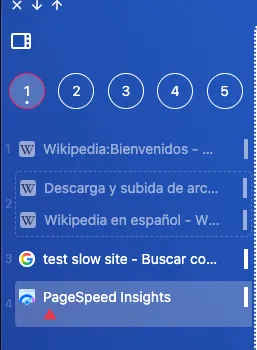
First of all, though, you need to know the concept of tab container.

A tab container is a container that can hold several tabs. For example, if you split two websites (2), the tab container contains both (one on the left and the other on the right).
Each tab container is numbered(1) from 1 to 9. This number/index will let you navigate to it directly with the key combination:
- Shortcut: Generic ANSI: CmdOrCtrl+1 · Generic ISO: CmdOrCtrl+1
- Shortcut: Generic ANSI: CmdOrCtrl+2 · Generic ISO: CmdOrCtrl+2
… and so on up to 9.
Previous/Next
Section titled “Previous/Next”If you want to move between the previous and next tab:
- Shortcut: Generic ANSI: CmdOrCtrl+] · Generic ISO: CmdOrCtrl+,
- Shortcut: Generic ANSI: CmdOrCtrl+[ · Generic ISO: CmdOrCtrl+.
Tab switcher
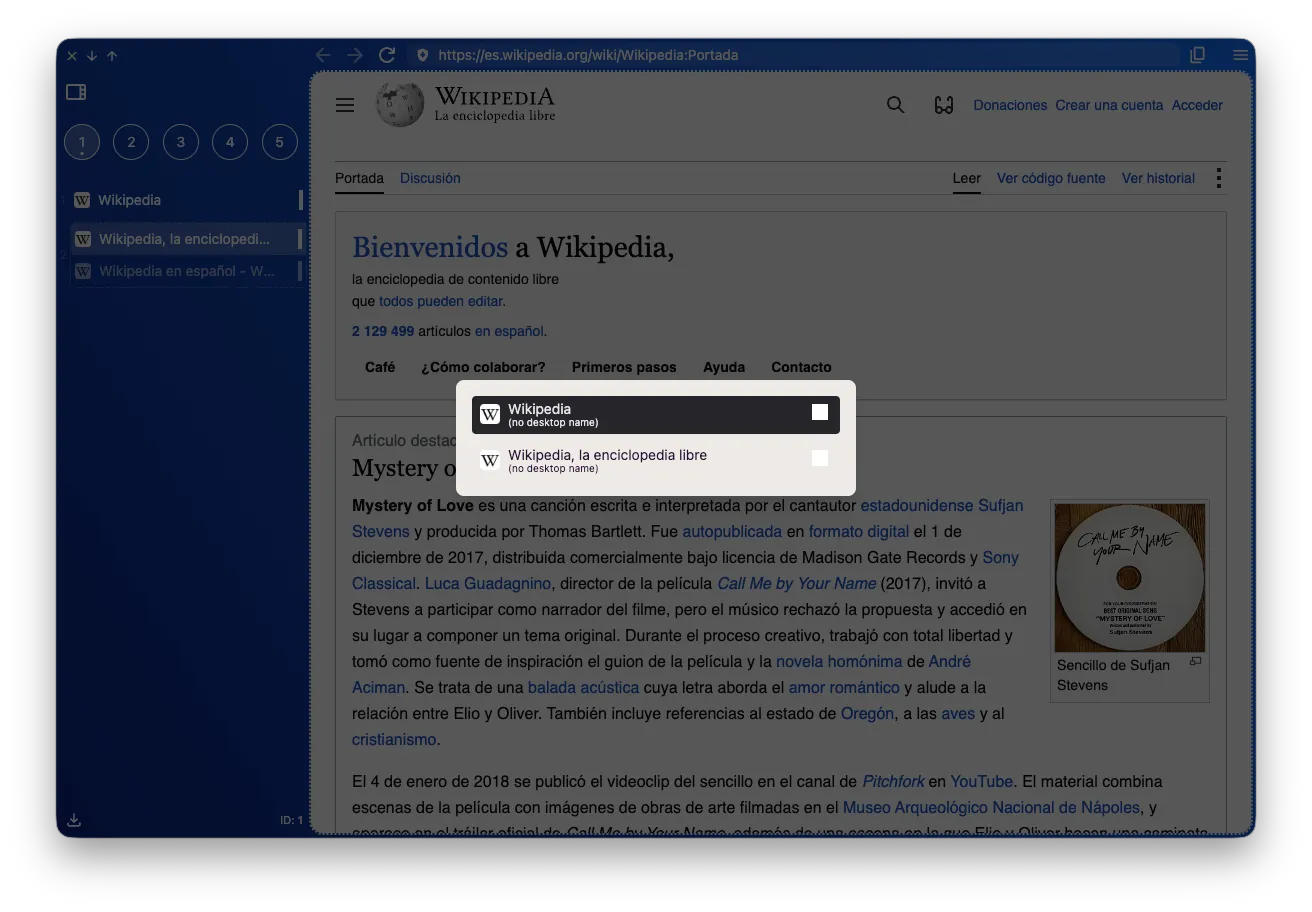
Section titled “Tab switcher”The tab switcher is the typical component that shows you a list of the open tabs to navigate between them.
- Shortcut: Generic ANSI: Control+Tab · Generic ISO: Control+Tab
Search for a tab
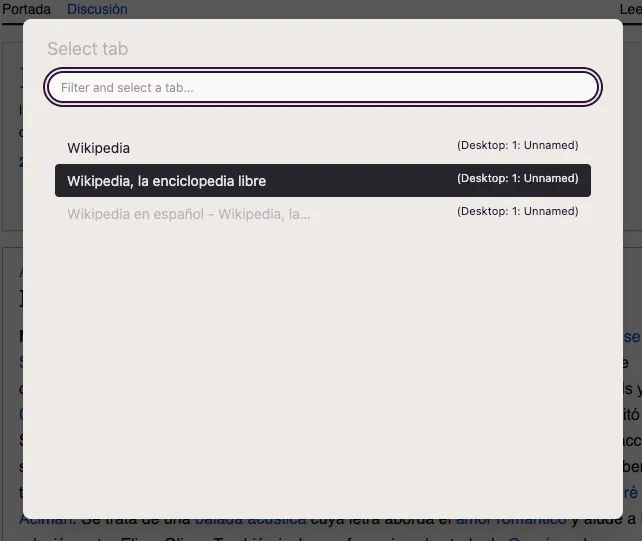
Section titled “Search for a tab”With the following key combination a modal appears with all tabs (active and suspended):
- Shortcut: Generic ANSI: CmdOrCtrl+. · Generic ISO: CmdOrCtrl+<
AwesomeB introduces a mark system to quickly access the tabs you use most often.
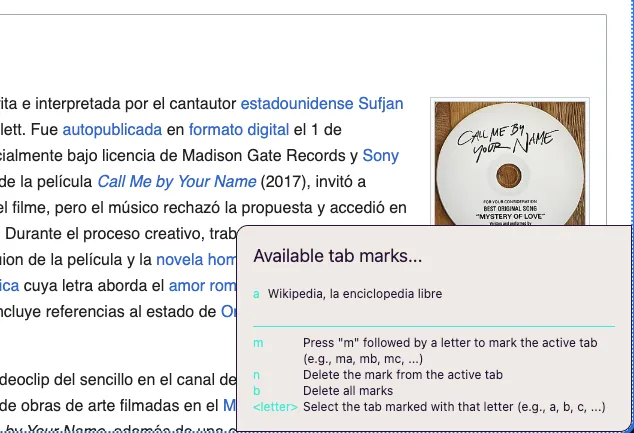
With the following shortcut, a small information box appears (bottom right):
- Shortcut: Generic ANSI: CmdOrCtrl+; · Generic ISO: CmdOrCtrl+;
Once open, you can (without releasing Cmd):
- Pressing
m+<letter>creates a new mark associating the letter with the active tab. - Pressing
<letter>only, you’ll access the associated tab. - Pressing
ndeletes the mark from the active tab. - Pressing
bdeletes all marks.
Requires attention
Section titled “Requires attention”If you’re on a desktop (for example 2) and on 1 there is a tab that requires attention, the desktop will be shown in red.
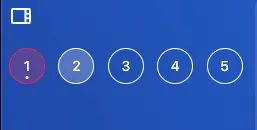
Pressing the following shortcut will take you directly to the tab:
- Shortcut: Generic ANSI: CmdOrCtrl+U · Generic ISO: CmdOrCtrl+U
The affected tab will have an alert icon, in red.
Toggle
Section titled “Toggle”There’s also a specific key combination to quickly toggle (without using the tab switcher) between the last used tab:
- Shortcut: Generic ANSI: CmdOrCtrl+' · Generic ISO: CmdOrCtrl+'