Bookmarks
As in other browsers, the bookmarks feature lets you store websites in a structured way so you can access them on future occasions.
Add a bookmark
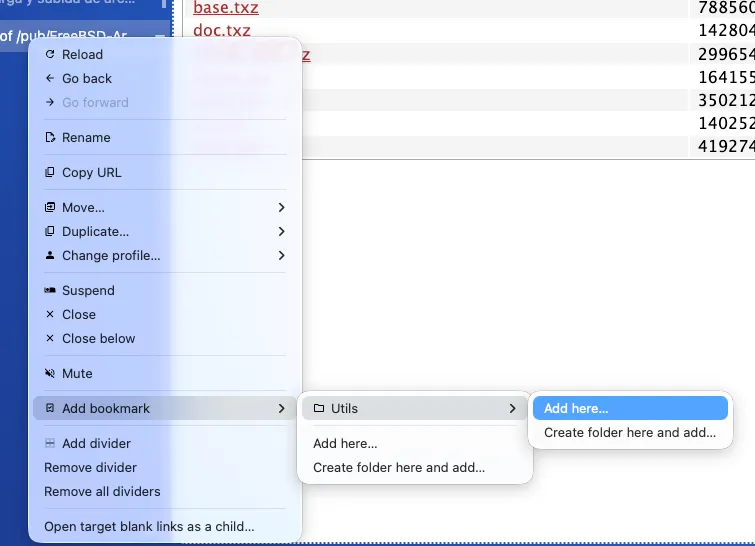
Section titled “Add a bookmark”It’s only possible using the context menu when a tab is active:
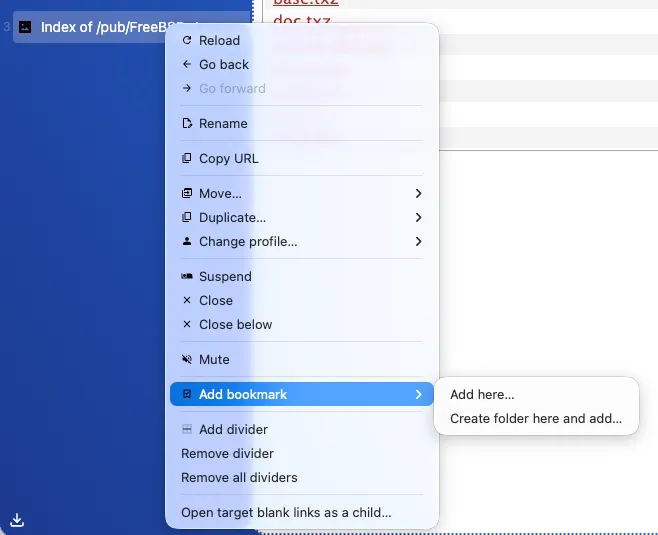
Add here
Section titled “Add here”It lets you save the website in the selected folder. Initially, since there is none, they are saved in the root.
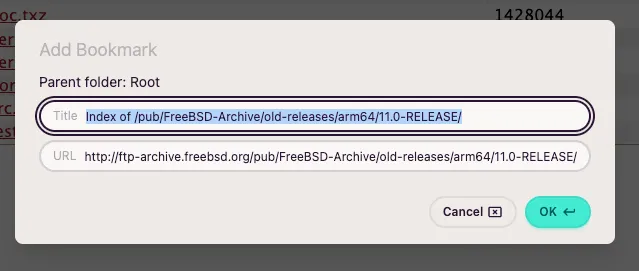
Create folder and add
Section titled “Create folder and add”It lets you create a new folder inside the folder you’re in (the first time is root) and save the website directly there.
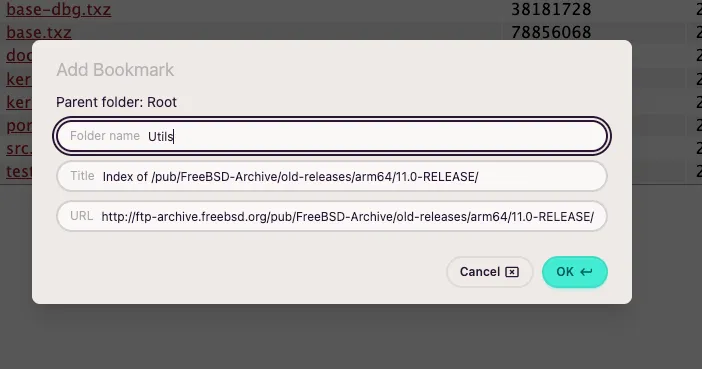
With this example you’ll see the why of Add here… and Create folder here and add…. If you access the add bookmark option again, you’ll see the new folder created in the example, and you can save the next website in root or inside Utils or whatever folders you have.
Save a desktop’s tabs
Section titled “Save a desktop’s tabs”You can save all the tabs of a desktop to bookmarks in one step. Right-click on a desktop in the sidebar and choose the Save desktop tabs to bookmarks option. The option is only available when the desktop has tabs, whether they are active or suspended.
- Command: Save Desktop Tabs
- Context menu: Save desktop tabs to bookmarks
The modal shows every tab of that desktop so you can pick which ones to save, choose a folder and set a folder name if you create a new one. After saving them, the tabs are closed.
Access a bookmark
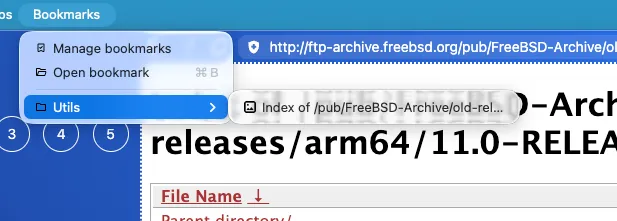
Section titled “Access a bookmark”From the menu
Section titled “From the menu”The bookmarks structure is accessible directly from the main menu.
From the bookmark search
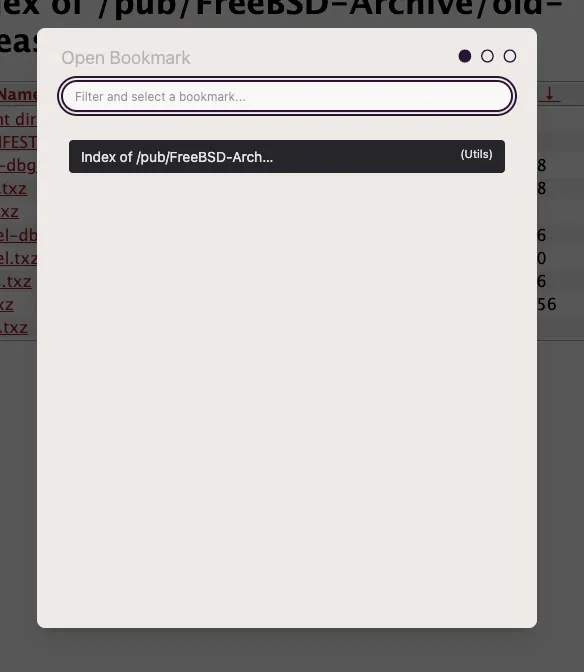
Section titled “From the bookmark search”- Main menu: Bookmarks → Open bookmark
- Shortcut: Generic ANSI: CmdOrCtrl+B · Generic ISO: CmdOrCtrl+B
Manage bookmarks
Section titled “Manage bookmarks”- Main menu: Bookmarks → Manage bookmarks
- Command: Manage Bookmarks
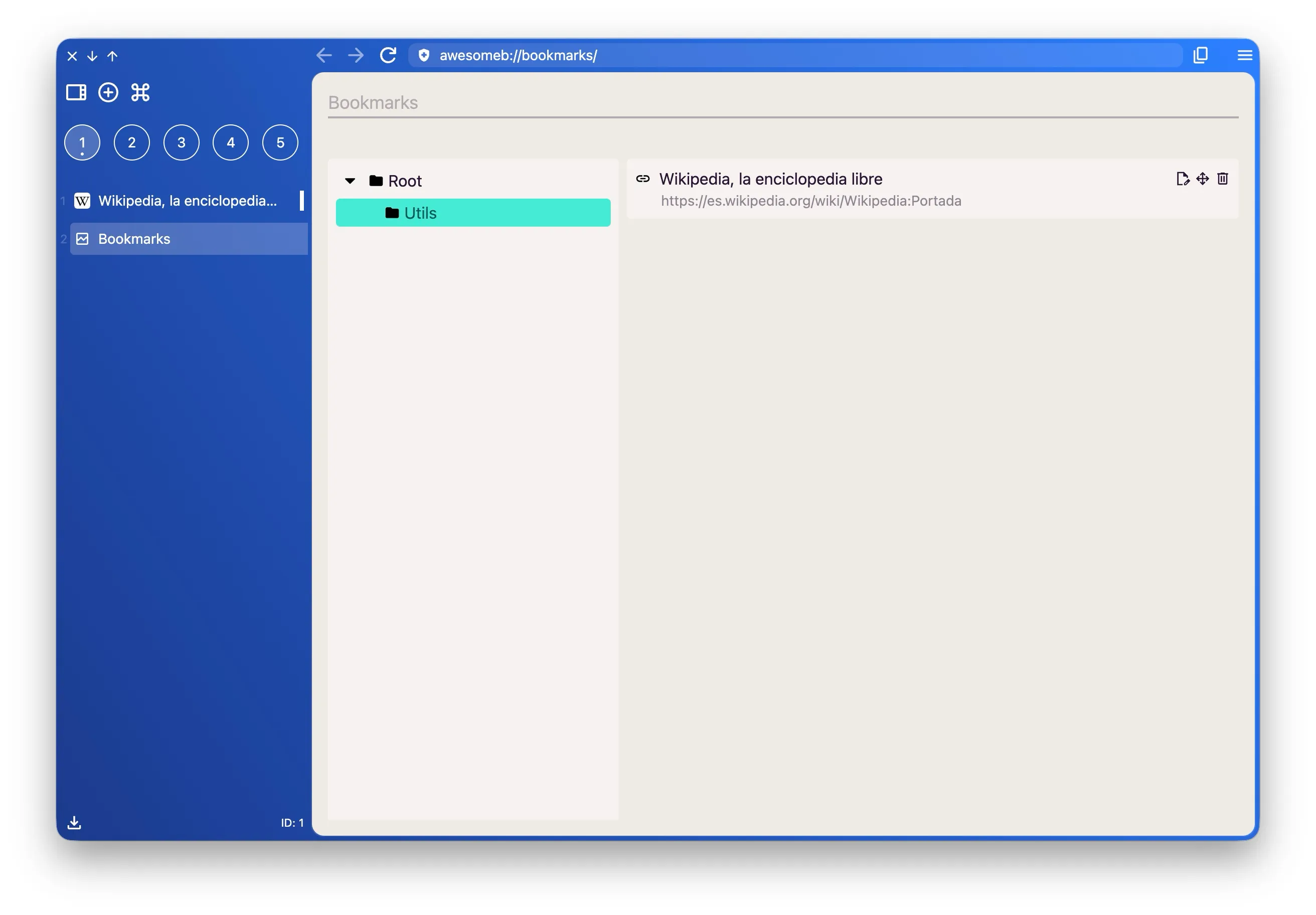
Currently there is a quite minimalist version of the bookmarks management page. It lets you modify, delete and move a bookmark. Each bookmark row also has a copy button to put its URL in the clipboard without opening it. And not much else. It will evolve in the future.